
Introduction
After upgrading to Windows Server 2025, many administrators encounter the following error when accessing shared folders, NAS devices, scanners, or legacy SMB storage:
“An extended error has occurred while accessing network storage.”
This issue commonly affects:
- Older NAS devices
- Samba shares
- Legacy Windows servers
- Shared folders using guest access
- Devices without SMB signing support
The problem is caused by stricter SMB security policies introduced in Windows Server 2025.
This guide explains multiple methods to fix the issue using:
- GPEDIT (Group Policy Editor)
- REGEDIT (Registry Editor)
- PowerShell commands
Why This Happens
Windows Server 2025 enables stronger SMB security by default, including:
- Mandatory SMB signing
- Blocking insecure guest logins
- NTLM hardening
- Stricter authentication policies
Older storage devices often do not support these newer security requirements.
As a result, Windows refuses the connection and displays the network storage error.
Method 1 — Fix Using Group Policy (GPEDIT)
This is the easiest and recommended method for most administrators.
Step 1: Open Local Group Policy Editor
Press:
Win + R
Type:
gpedit.msc
and press Enter.
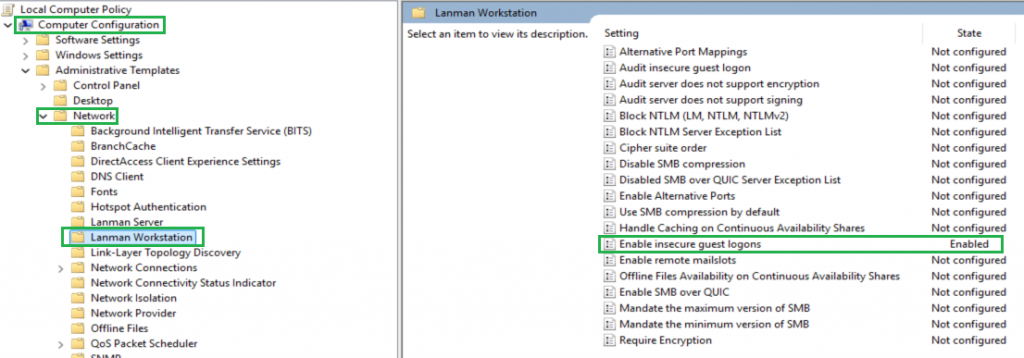
Step 2: Enable Insecure Guest Logons
Navigate to:
Computer Configuration
→ Administrative Templates
→ Network
→ Lanman Workstation
Find:
Enable insecure guest logonsSet it to:
Enabled
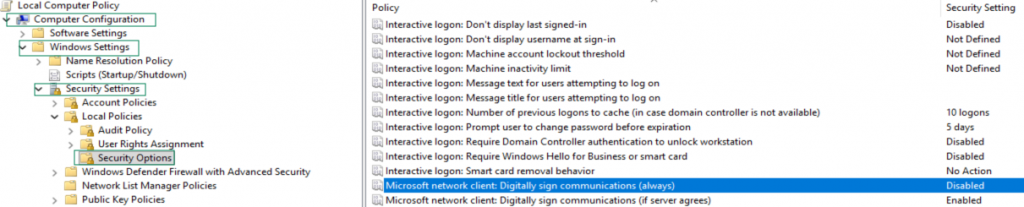
Step 3: Disable Mandatory SMB Signing
Navigate to:
Computer Configuration
→ Windows Settings
→ Security Settings
→ Local Policies
→ Security Options
Find:
Microsoft network client:
Digitally sign communications (always)
Set it to:
Disabled
Step 4: Apply Policies
Open Command Prompt as Administrator and run:
gpupdate /force
Then reboot the server.
Method 2 — Fix Using Registry Editor (REGEDIT)
This method directly modifies SMB client settings in the registry.
Step 1: Open Registry Editor
Press:
Win + R
Type:
regedit
and press Enter.
Step 2: Navigate to the SMB Workstation Parameters
Go to:
HKEY_LOCAL_MACHINE\SYSTEM\CurrentControlSet\Services\LanmanWorkstation\Parameters
Step 3: Create or Modify the Following DWORD Values
Disable Required SMB Signing
Create or modify:
"RequireSecuritySignature"=dword:00000000
Enable Insecure Guest Authentication
Create or modify:
"AllowInsecureGuestAuth"=dword:00000001
Complete Registry Example
Windows Registry Editor Version 5.00

[HKEY_LOCAL_MACHINE\SYSTEM\CurrentControlSet\Services\LanmanWorkstation\Parameters]

"RequireSecuritySignature"=dword:00000000
"AllowInsecureGuestAuth"=dword:00000001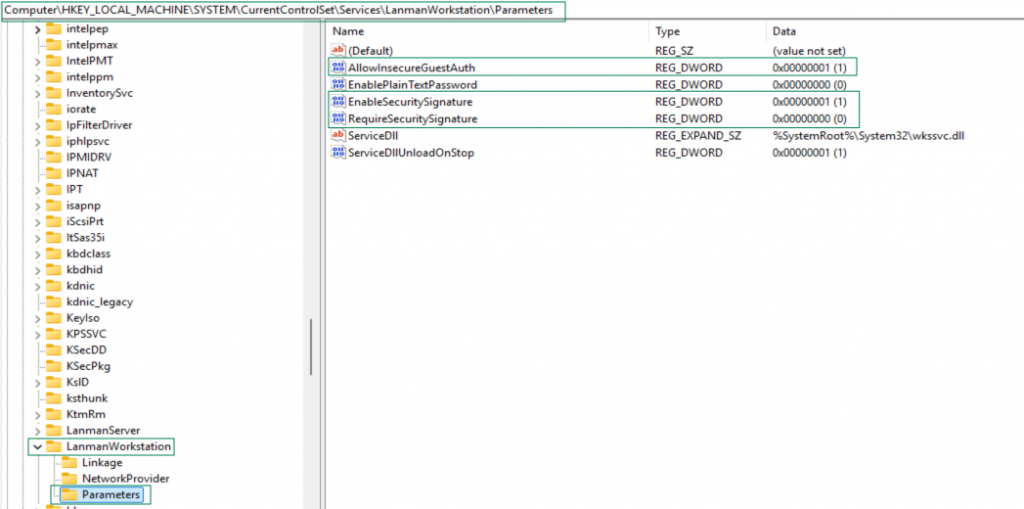
Step 4: Restart the Server
Reboot Windows Server 2025 after applying the changes.
Method 3 — Fix Using PowerShell
PowerShell is ideal for automation and server deployments.
Open PowerShell as Administrator.
Disable SMB Signing Requirement
Run:
Set-SmbClientConfiguration -RequireSecuritySignature $false
Press:
Y
to confirm.
Verify Current SMB Client Configuration
Run:
Get-SmbClientConfiguration
Check the value for:
RequireSecuritySignature
It should now display:
False
Enable Insecure Guest Logons via PowerShell
Run:
Set-ItemProperty -Path "HKLM:\SYSTEM\CurrentControlSet\Services\LanmanWorkstation\Parameters" `
-Name AllowInsecureGuestAuth -Value 1 -Type DWord
Optional: Enable SMB1 Support (Legacy NAS Devices Only)
Some old NAS devices still require SMB1.
Enable SMB1:
Enable-WindowsOptionalFeature -Online -FeatureName SMB1Protocol
Then reboot.
Only enable SMB1 if absolutely necessary because it is outdated and less secure.
Additional Troubleshooting Steps
Clear Saved Credentials
Open Credential Manager:
control /name Microsoft.CredentialManager
Remove old entries related to the NAS or file server.
Test SMB Connectivity
Run:
Test-NetConnection SERVERNAME -Port 445
Example:
Test-NetConnection 192.168.1.20 -Port 445
If port 445 fails, SMB traffic may be blocked by:
- Firewall
- NAS configuration
- Antivirus
- Network policy
Access Using IP Address
Instead of:
\\NAS-SERVER\Share
try:
\\192.168.1.20\Share
This helps identify DNS or hostname resolution problems.
Security Considerations
The fixes above reduce SMB security to support older devices.
Recommended long-term solutions:
- Upgrade NAS firmware
- Use authenticated SMB shares instead of guest access
- Disable SMB1 where possible
- Enable SMB signing on storage devices
- Restrict network access using VLANs or firewall rules
Final Thoughts
The “An extended error has occurred while accessing network storage” issue in Windows Server 2025 is usually caused by SMB signing enforcement and blocked guest authentication.
In most environments, the following two changes solve the problem immediately:
- Disable required SMB signing
- Enable insecure guest logons
These can be configured using:
- GPEDIT
- REGEDIT
- PowerShell
If you are connecting to older NAS devices or Samba shares, these compatibility settings are often necessary after upgrading to Windows Server 2025.